Below are the most commonly reported issues, along with their resolutions.
My reader isn’t found when I try to pair it in Companion.
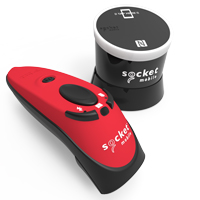
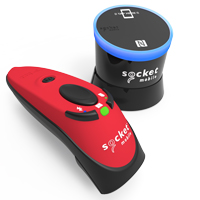
Power on the reader
Press and hold the scan button and power button simultaneously until the barcode reader plays 3 tones and shuts down.
Watch:
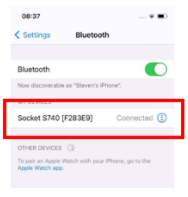
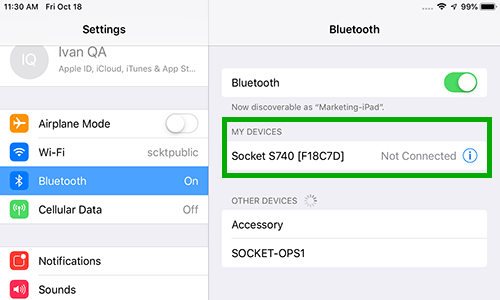
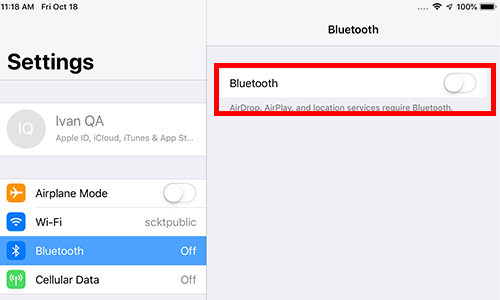
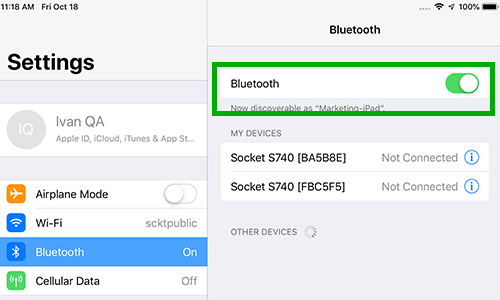
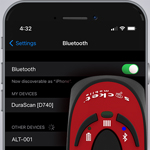
Open Settings > Bluetooth on your Apple or Android device
Find your data reader and select "Forget/Delete/Unpair This Device" to remove the reader
Power the reader back on and attempt pairing again
My reader scans perfectly into my tablet-based POS application but not into a web-based inventory management application.
Certain POS applications, such as Shopify, require that inventory be managed in a separate web-based application. Our SM Browser app allows you to keep your barcode scanner in Application Mode for both POS and inventory without resetting and re-pairing the scanner each time you switch.
Launch the application and enter your web-based inventory URL
Select the field you wish to scan into, and scan a barcode
When done, switch seamlessly back to POS
My reader turns off randomly on its own.
Possible Cause:
Solution:
Your batteries need to be reset.
Remove the batteries from your reader, leave them out for 10 minutes, and re-insert and recharge the scanner overnight.
Possible Cause:
Solution:
The reader is being charged incorrectly.
Important! - Charging your reader using an incorrect source (such as a computer USB port) will not provide enough current to charge the reader. This may result in the reader registering as having more charge than it does and shutting down.
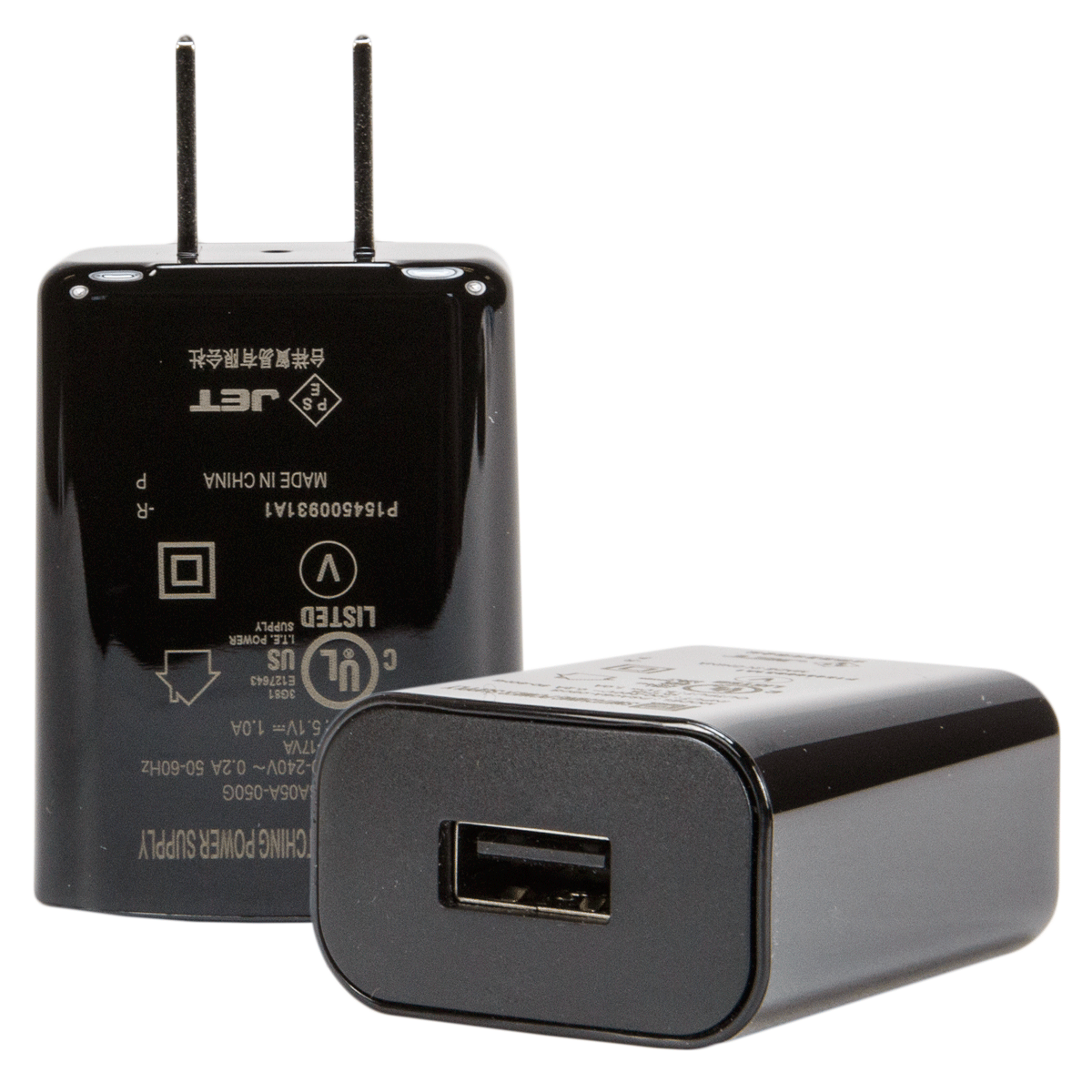
We recommend charging your reader using a suitable AC Power Adapter.
Possible Cause:
Solution:
Your reader has not been used in 2 hours. By default, the reader powers off and disconnects after 2 hours of no activity.
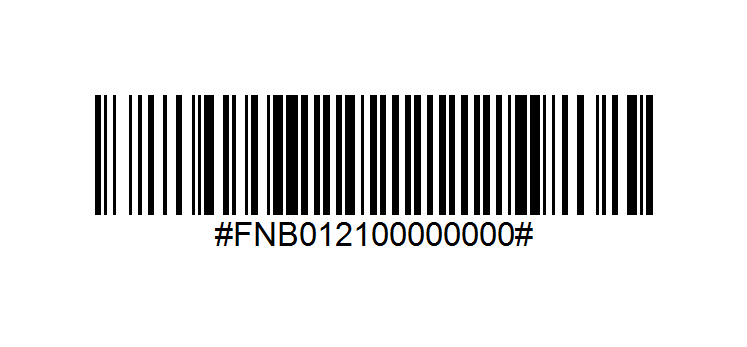
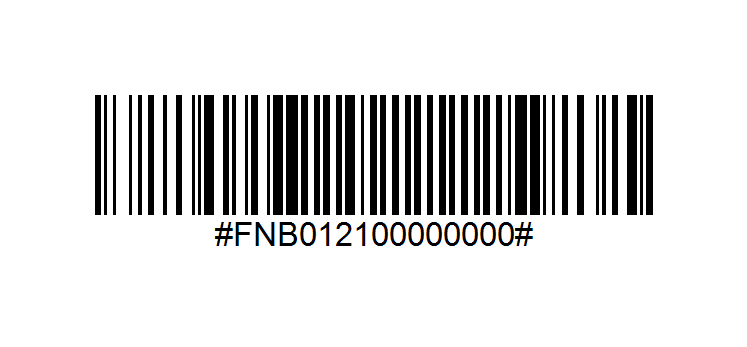
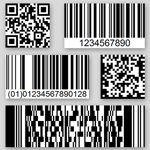
Turn off your host device's Bluetooth, then scan the "reader is always on" barcode below to configure your reader (barcode readers only).
When I read a barcode or NFC tag, no data appears on my screen.
Possible Cause:
Solution:
Although your device says it's connected, you are in the wrong mode.
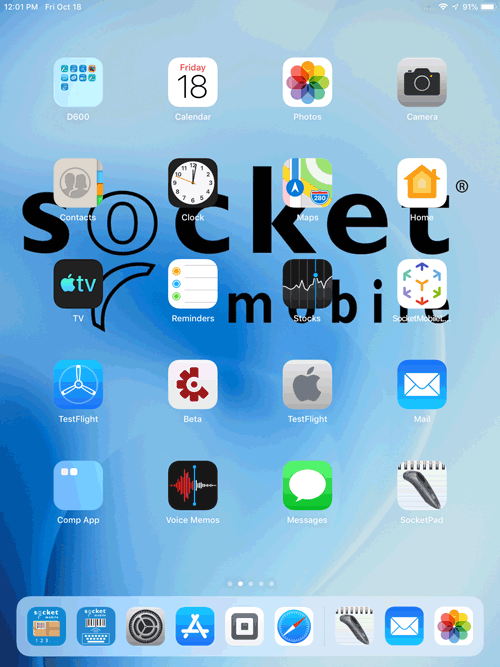
If you are scanning into an application such as Shopify, Square, or Zettle by Paypal, restart the host device and pair your reader to your host in Application Mode using the Socket Mobile Companion App.
No application is activated to receive scanned data.
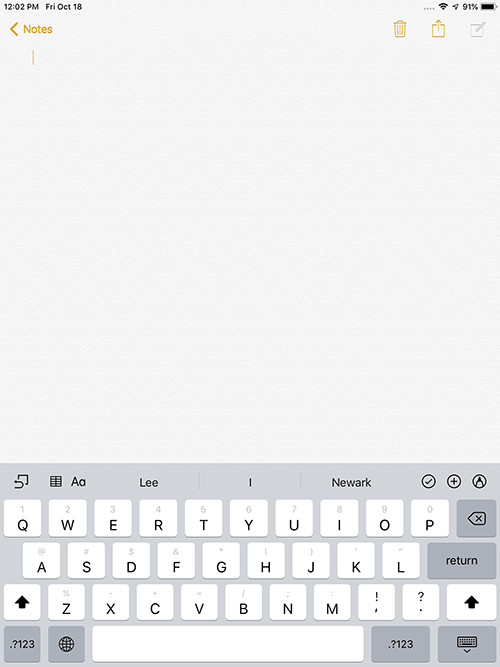
Open an application (e.g., Notes). Position the cursor where you wish to enter data and try scanning again.
My reader frequently disconnects from Bluetooth.
Possible cause:
Solution:
Your software application or device's operating system may have updated in the background, or your device may be older and struggling to maintain a Bluetooth connection.
Force close your software application and relaunch it
If relaunching your software application doesn't resolve the issue, reset/restart your device
Possible cause:
Solution:
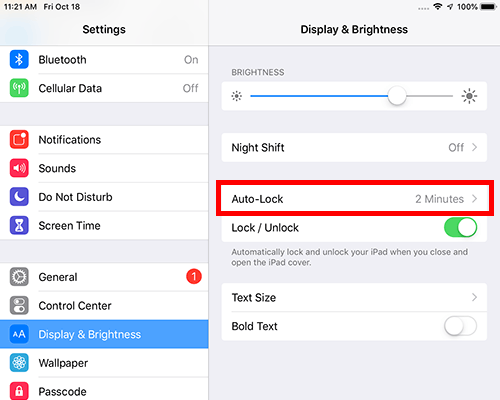
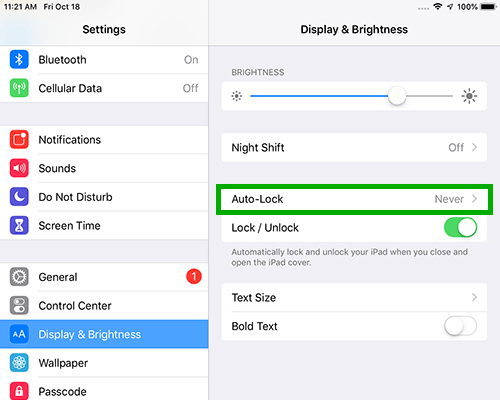
Your iPad/tablet's Auto-lock feature is enabled.
Disable iPad/tablet's auto-lock feature.
My host device cannot find the reader.
Possible Cause:
Solution:
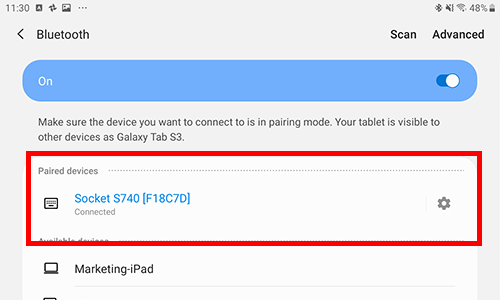
The reader is already paired with another host device.
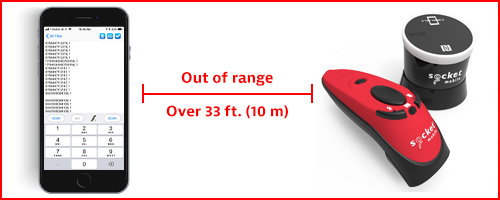
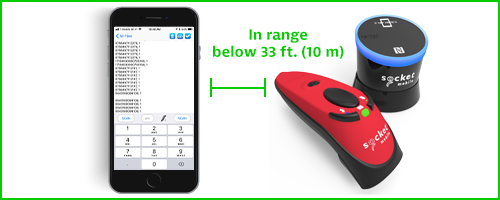
Move the devices closer together. The Bluetooth range is within 33 feet (10 meters) of the host device.
Possible Cause:
Solution:
The reader is not powered on.
Power on the reader.
Possible Cause:
Solution:
Your host device does not have Bluetooth enabled.
Enable Bluetooth on your device.
My reader is not holding a charge.
Possible Cause:
Solution:
Your batteries need to be reset.
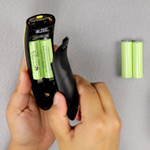
Remove the battery cover from the back of the data reader, extract the batteries, then set them aside for 10 minutes. Re-insert the batteries, replace the battery door, and charge until the battery indicator light turns green (may take up to 6 hours).
Possible Cause:
Solution:
Your batteries need replacing.
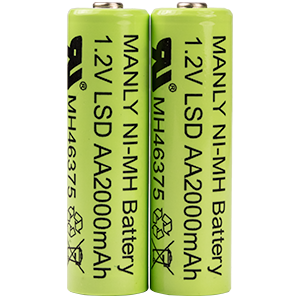
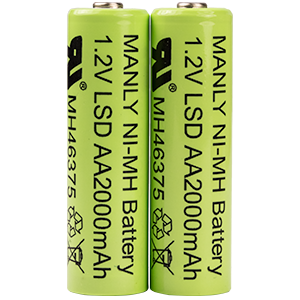
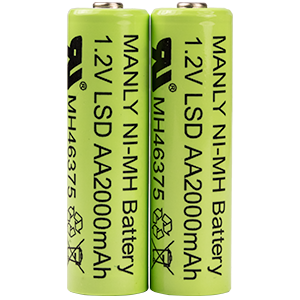
Remove the battery cover from the back of the barcode reader, extract the batteries, then replace them with 2 x AA Rechargeable NiMH batteries. Replace the battery door and charge until the battery indicator light turns green (may take up to 6 hours).
Did you know...
42% of all sudden Bluetooth and connectivity issues reported are caused by the tablet or software being updated in the background? A simple restart of the tablet normally fixes the issue. Worth a try!
FAQs and troubleshooting
Filter FAQs, how-to's, and troubleshooting guides by category to quickly find a solution to your issue.
We use cookies and similar technologies for site operation and analytics to enhance your experience as described in our Privacy Policy.
Cookies Settings
Your Privacy
We use cookies to store or access information on your browser to ensure the site works as expected and to personalize your experience. This information cannot be used to identify you. We do not collect or store your personal information.
You may choose to disable optional cookies that are not strictly necessary for site functionality. Please note that blocking certain cookies may affect site performance and available features. Learn more
Necessary cookies
These cookies are necessary to the core functionality of our site and its features.
View details
Name
Domain
Type
Purpose
CartIdCookie-Shopify Store WWW
www.socketmobile.com
First-party
Used for cart functionality across the site.
_cf_bm
.vimeo.com
Third-party
Used for Cloudflare Bot Management. Identifies and mitigates malicious bot traffic.
_cfuvid
.vimeo.com
Third-party
Allows Cloudflare's WAF to identify unique users for rate-limiting purposes.
Analytics cookies
These cookies collect information about how the site is being used. They also help to measure effectiveness in our marketing campaigns to curate a personalized site experience for you.
View details
Name
Domain
Type
Purpose
_ga
.socketmobile.com
First-party
Used to distinguish unique users by assigning a randomly generated number as a client identifier, in order to calculate visitor, session and campaign data for analytics reports in Google Universal Analytics.
_ga_<container-id>
.socketmobile.com
First-party
Used by Google Analytics to persist your session state.
vuid
.vimeo.com
Third-party
Vimeo-generated ID used for generating analytics information for the video owner.