Click and select 'Save as PDF' and check 'Background Graphics' for best results
Click select 'Save as PDF' and check 'Background Graphics' for best results
Click and select 'Save to PDF' and check 'Print backgrounds' for best results
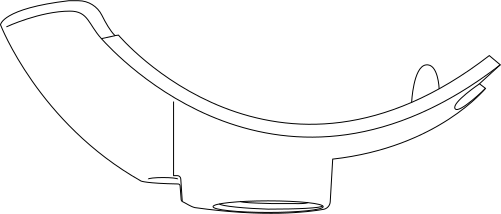
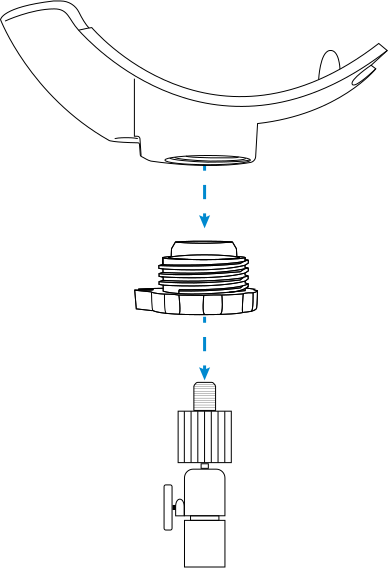
a. Charging Mount
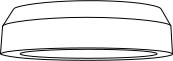
b. Ball Joint Surface
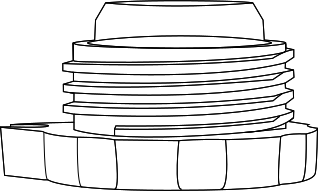
c. Pem Cap
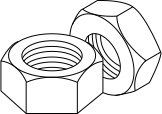
Hex Nuts (2)
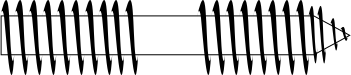
Hanger Bolt
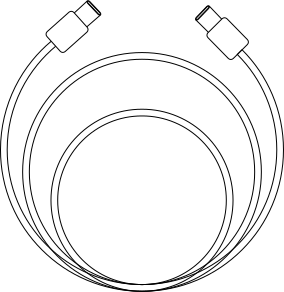
Charging Cable
Step 1:
Insert the ball joint surface (b) into the bottom of the charging mount (a).
Step 2:
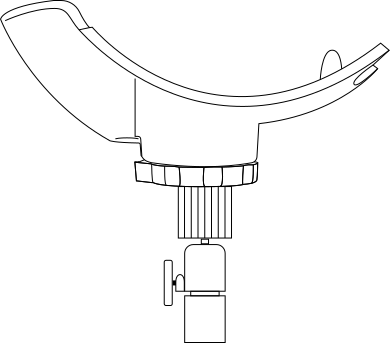
Attach the pem cap (c) to the bottom of the charging mount (a) and tighten securely.
Step 3:
Secure the charging cable and connect to a charging adapter.
We include a Hanger Bolt to secure the Charging Mount directly to a wooden surface. Since the Pem Cap connects to a Camera Mount, popular with IP Cameras, many OEM solutions are available which do not require the Hanger Bolt.
If you plan to use the Hanger Bolt follow the special instructions for mounting on a wooden surface.
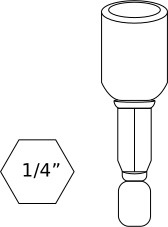
If you have many Hanger Bolts to install, you may want to use a 1/4”-20 Hanger Bolt Driver with an Electric Screw Driver.
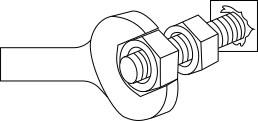
Step 1: Screw two Hex nuts (1/4”-20 thread, not included) onto the machine-threaded portion of the Hanger Bolt.
Step 2: Use an open-ended wrench to lock the nuts against each other.
Step 3: Drill a pilot hole into the surface you wish to place the Charging Mount.
Step 4: Thread the lag portion of the Hanger Bolt into this surface as far as you can by hand.
Step 5: Use a wrench on the outermost nut to drive the Hanger Bolt into the surface.
Step 6: When the lag portion is sufficiently threaded, unjam the two nuts from each other, and run them off (unscrew them).
Step 1:
Attach the Pem cap to your Camera Mount (1/4” - 20, 3/4” depth thread) and turn to the right.
Step 2:
Attach the Charging Mount to the Pem cap.
Command Barcodes
Modes
Barcodes
Mobile Mode
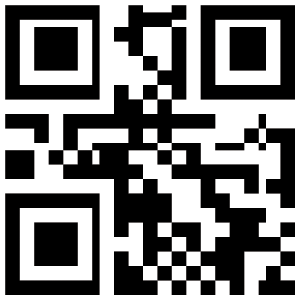
Normal (default)* Scanning this barcode will enable the scanner to enter mobile mode. It will always be in manual trigger mode even when placed in the mount or cradle. *Scanner Factory Reset returns to Mobile Mode.
Auto Mode (Presentation Mode)
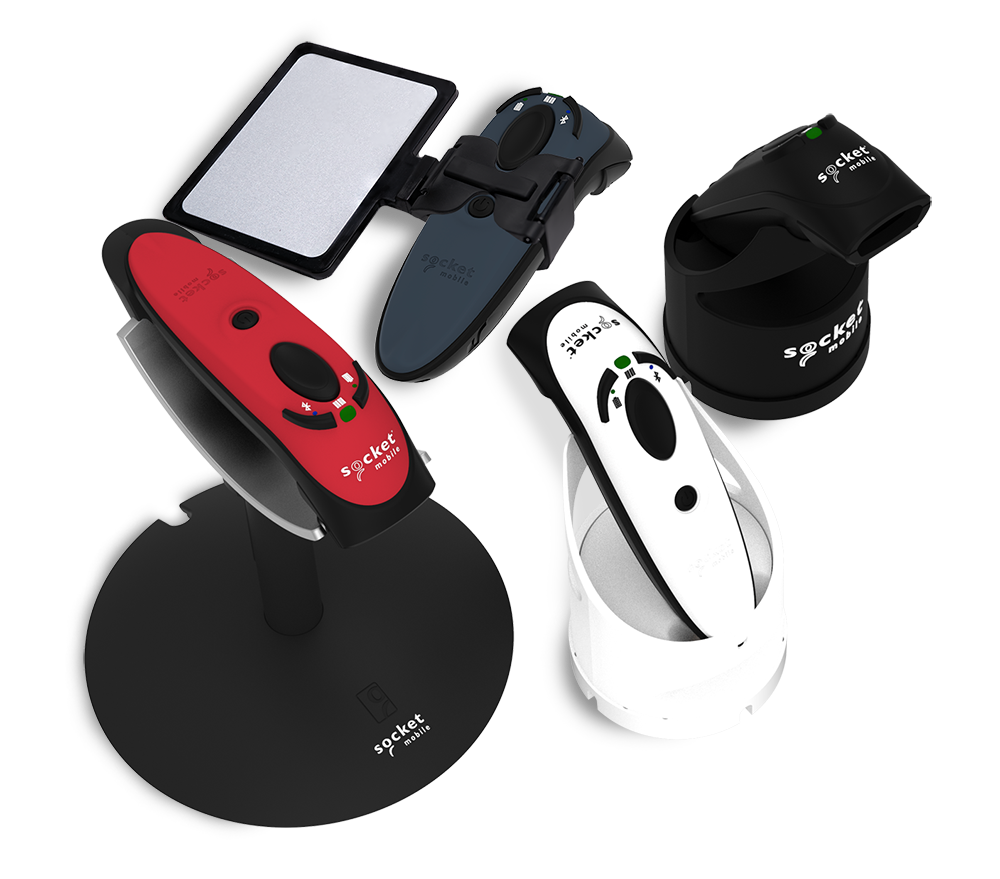
Scanning this barcode will enable the scanner to enter auto mode. When the scanner is in auto mode, it will switch to presentation trigger mode when it detects power on the cradle pins. When the scanner is removed from the cradle it will remain in presentation trigger mode until the users press the trigger. At that point it will switch to normal manual trigger mode. Auto Mode command barcode is also printed on the product label.
We value your privacy
We use cookies and similar technologies for site operation and analytics to enhance your experience as described in our Privacy Policy.
Cookies Settings
Your Privacy
We use cookies to store or access information on your browser to ensure the site works as expected and to personalize your experience. This information cannot be used to identify you. We do not collect or store your personal information.
You may choose to disable optional cookies that are not strictly necessary for site functionality. Please note that blocking certain cookies may affect site performance and available features. Learn more
Necessary cookies
These cookies are necessary to the core functionality of our site and its features.
View details
Name
Domain
Type
Purpose
CartIdCookie-Shopify Store WWW
www.socketmobile.com
First-party
Used for cart functionality across the site.
_cf_bm
.vimeo.com
Third-party
Used for Cloudflare Bot Management. Identifies and mitigates malicious bot traffic.
_cfuvid
.vimeo.com
Third-party
Allows Cloudflare's WAF to identify unique users for rate-limiting purposes.
Analytics cookies
These cookies collect information about how the site is being used. They also help to measure effectiveness in our marketing campaigns to curate a personalized site experience for you.
View details
Name
Domain
Type
Purpose
_ga
.socketmobile.com
First-party
Used to distinguish unique users by assigning a randomly generated number as a client identifier, in order to calculate visitor, session and campaign data for analytics reports in Google Universal Analytics.
_ga_<container-id>
.socketmobile.com
First-party
Used by Google Analytics to persist your session state.
vuid
.vimeo.com
Third-party
Vimeo-generated ID used for generating analytics information for the video owner.