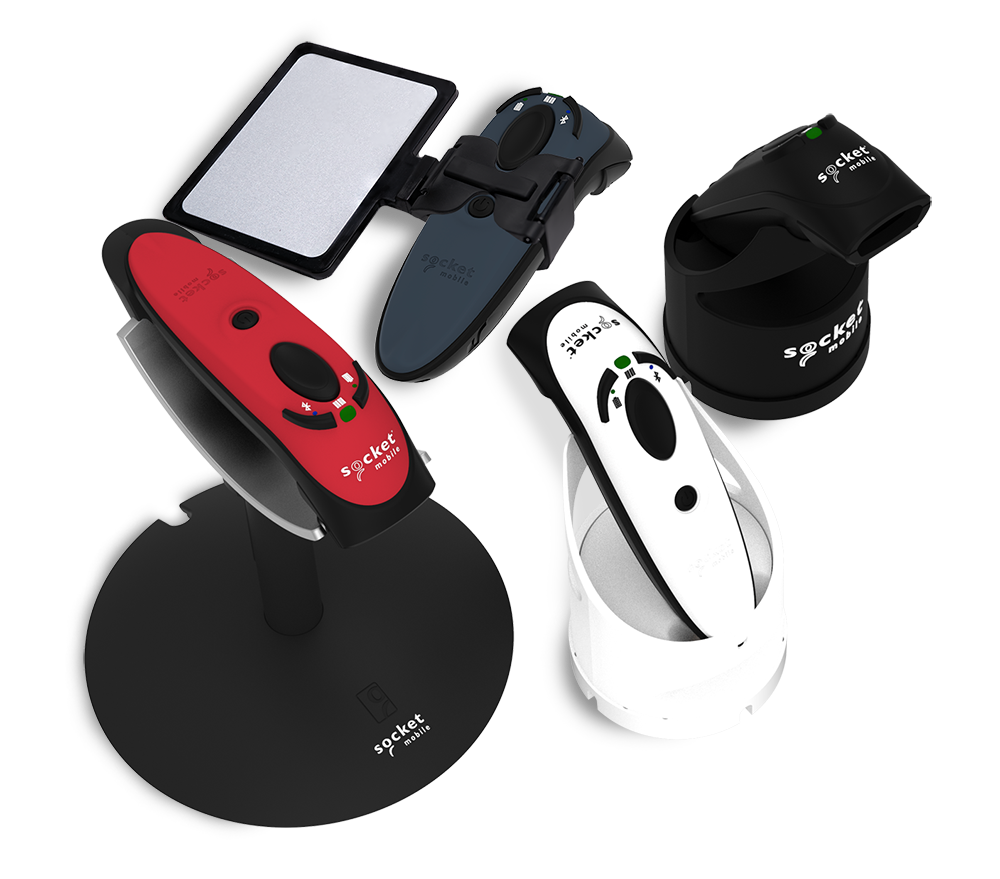
User Guide for SM Link
Click and select 'Save as PDF' and check 'Background Graphics' for best results
Click and select 'Save as PDF' and check 'Background Graphics' for best results
Click and select 'Save to PDF' and check 'Print backgrounds' for best results

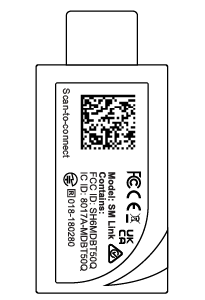 a. SM Link |  b. Quick Start Guide |
SM Link is a Socket Mobile connectivity accessory that enables plug-and-play communication between Socket Mobile scanners and host devices via USB.
This guide applies to use with the Socket Mobile Bluetooth Low Energy scanners.
SM Link is designed to provide:
- Fast pairing
- Stable data transmission
- Simple plug-and-scan operation
- Automatic device recognition
Not Compatible: Bluetooth Classic scanners including the DuraScan 700 series and other legacy models:
Important: Attempting to use SM Link with Bluetooth Classic scanners will result in failure to connect.
Step 1: Power on scanner Press and hold the power button. You will hear 2 escalating tones. | 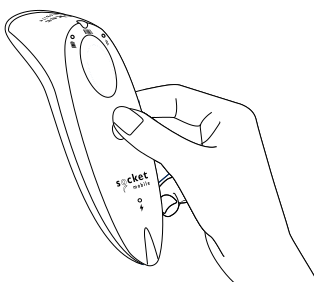 |
Step 2: Scan to connect Scan the SM Link pairing barcode. This configures the scanner for SM Link Mode. | 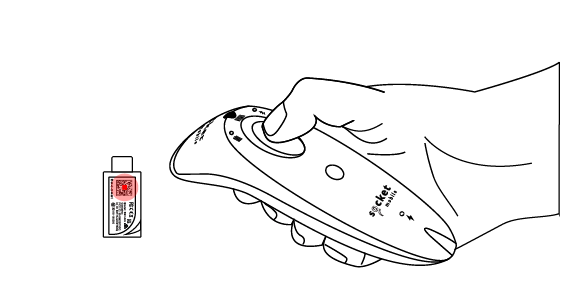 |
Step 3: Connect SM Link into host device Plug SM Link into a USB-C port on the host device. After connection:
Note: We recommend using a powered USB hub to allow charging of the host device and SM Link connection. | 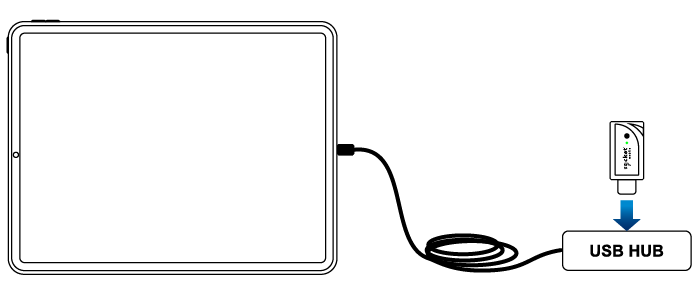 |
Step 4: Launch application Open your application and begin scanning barcodes. All scanned data will be transmitted directly into the application. | 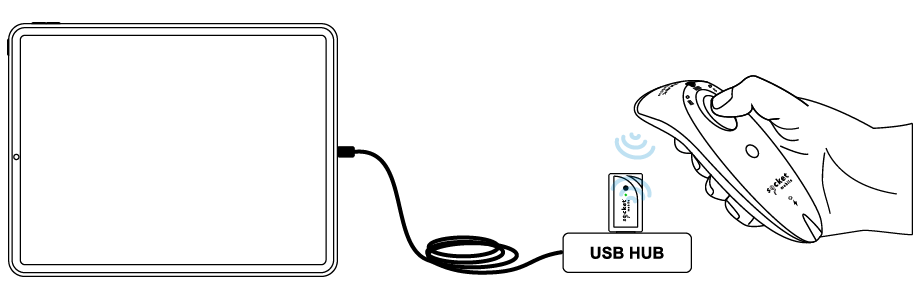 |
SM Link is a Socket Mobile connectivity accessory that enables plug-and-play communication between Socket Mobile NFC readers and host devices via USB.
This guide applies to use with the Socket Mobile Bluetooth Low Energy scanners.
SM Link is designed to provide:
- Fast pairing
- Stable data transmission
- Simple plug-and-read operation
- Automatic device recognition
Not Compatible: Bluetooth Classic legacy models:
Important: Attempting to use SM Link with Bluetooth Classic readers will result in failure to connect.
Step 1: Power on barcode scanner Press and hold the power button. You will hear 2 escalating tones. | 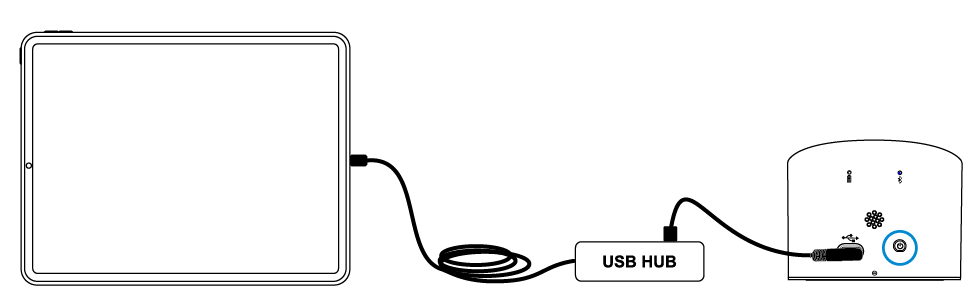 |
Step 2: Tap to connect Scan your pairing barcode. This configures the data reader for SM Link Mode. | 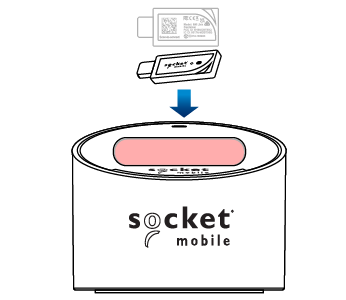 |
Step 3: Connect SM Link into host device Plug SM Link into a USB-C port on the host device. After connection:
Note: We recommend using a powered USB hub to allow charging of the host device and SM Link connection. | 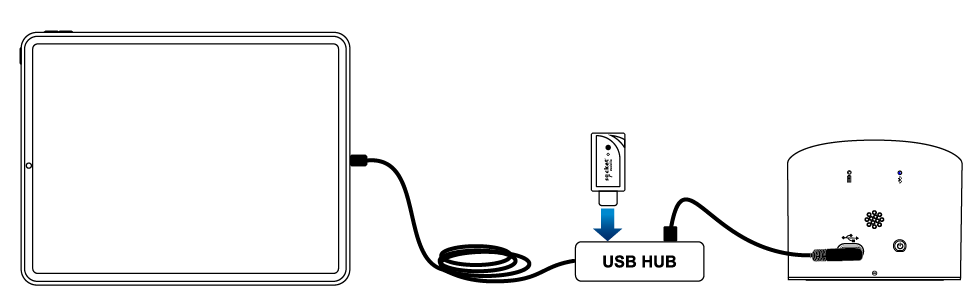 |
Step 4: Launch application Open your application and begin scanning. All data read will be transmitted directly into the application. | 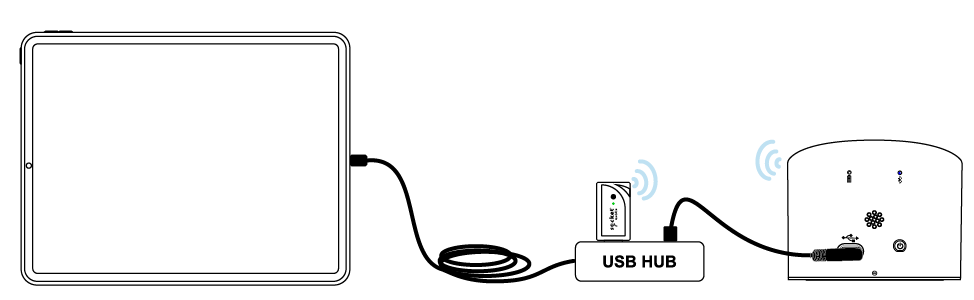 |
SM Link is a Socket Mobile connectivity accessory that enables plug-and-play communication between Socket Mobile NFC readers and host devices via USB.
This guide applies to use with the Socket Mobile Bluetooth Low Energy scanners.
SM Link is designed to provide:
- Fast pairing
- Stable data transmission
- Simple plug-and-read operation
- Automatic device recognition
Not Compatible: Bluetooth Classic legacy models:
- D600
Important: Attempting to use SM Link with Bluetooth Classic readers will result in failure to connect.
Step 1: Power on data reader Press and hold the power button. You will hear 2 escalating tones. | 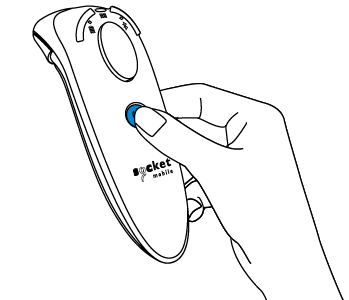 |
Step 2: Tap to connect Place the pairing card included on your data reader. This configures the data reader for SM Link Mode. | 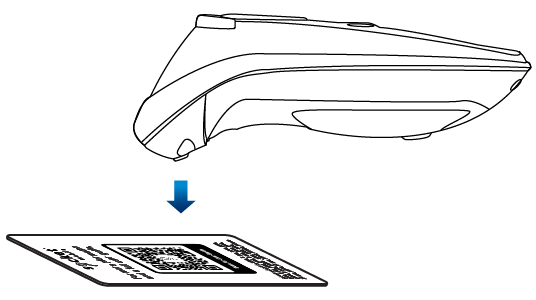 |
Step 3: Connect SM Link into host device Plug SM Link into a USB-C port on the host device. After connection:
Note: We recommend using a powered USB hub to allow charging of the host device and SM Link connection. | |
Step 4: Launch application Open your application and begin reading data. All data read will be transmitted directly into the application. | 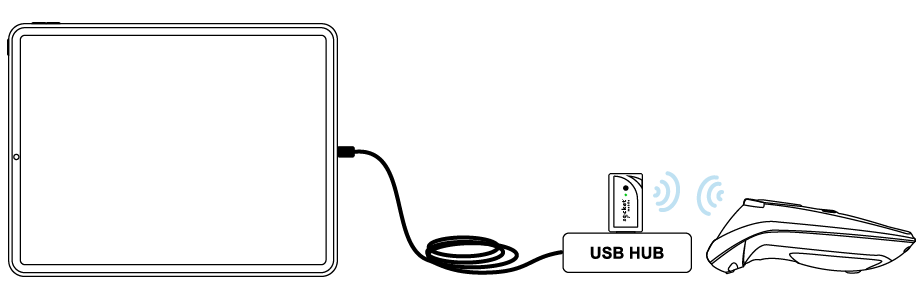 |
SM Link is a Socket Mobile connectivity accessory that enables plug-and-play communication between Socket Mobile NFC readers and host devices via USB.
This guide applies to use with the Socket Mobile Bluetooth Low Energy scanners.
SM Link is designed to provide:
- Fast pairing
- Stable data transmission
- Simple plug-and-read operation
- Automatic device recognition
Not Compatible: Bluetooth Classic legacy models:
- D600
Important: Attempting to use SM Link with Bluetooth Classic readers will result in failure to connect.
Step 1: Power on data reader Press and hold the power button. You will hear 2 escalating tones. | |
Step 2: Tap to connect Place the pairing card included on your data reader. This configures the data reader for SM Link Mode. | 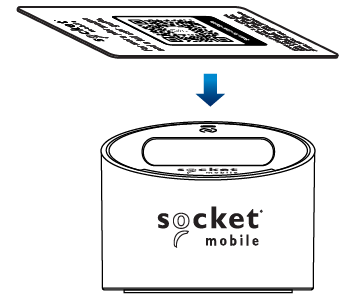 |
Step 3: Connect SM Link into host device Plug SM Link into a USB-C port on the host device. After connection:
Note: We recommend using a powered USB hub to allow charging of the host device and SM Link connection. | 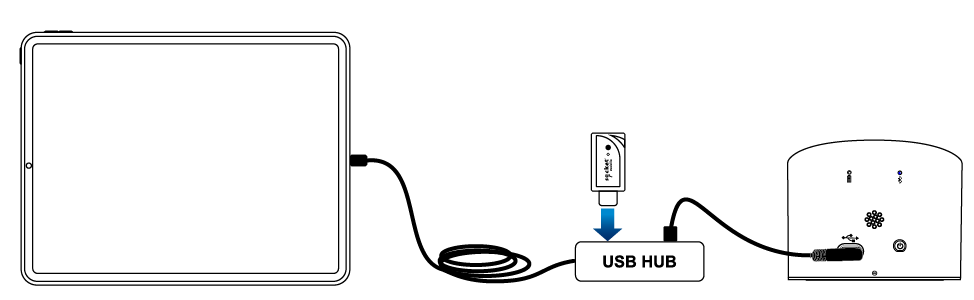 |
Step 4: Launch application Open your application and begin reading data. All data read will be transmitted directly into the application. | |
SM Link
SM Link LED | Status |
LED is blinking Blue | Not connected |
LED is solid Blue | Connected |
Barcode Scanner (S721, S741)
Scanner Sound | Status |
2 escalating tones | Scanner powered on |
1 High-pitched beep | SM Link successfully connected |
High-low beep | SM Link unplugged/disconnected |
Scanner LED | Status |
Bluetooth LED is blinking Blue | Not connected |
Bluetooth LED is solid Blue | Connected |
Bluetooth LED blinks every 2 seconds | SM Link unplugged/disconnected |
Handheld RFID Reader/Writer (D751)
Sound | Status |
2 escalating tones | Scanner powered on |
1 beep | SM Link successfully connected/reader connected |
1 beep | Scan successful |
3 fast beeps | SM Link unplugged/disconnected |
Scanner LED | Status |
Solid Blue | Reader connected |
Turns Green | Scan successful |
Blinking Blue | SM Link unplugged/disconnected |
Countertop RFID Reader/Writer (S370, S550)
Sound | Status |
Melody, ‘Reader’, ‘Connecting’ | Reader powered on |
'Connecting' | SM Link successfully connected/Reader connected |
1 beep | SM Link unplugged/disconnected |
'Disconnecting' | SM Link unplugged/disconnected |
'Shut down' | Reader power off |
Ring LED | Status |
Different LED colors | Reader power on |
Solid Cyan | SM Link successfully connected/reader connected |
Turns Green | Scan successful |
LED off | SM Link unplugged/disconnected |
LED off | Reader power off |
Safety and Handling
- Avoid exposure to moisture, heat or direct sunlight
- Use only approved charging accessories
- Do not drop or mechanically shock device
- Store in dry environment when not in use
Regulatory Compliance Information
This device (S721) and SM Link accessory comply with applicable regulatory requirement when used as instructed
FCC Compliance: USA
Contains FCC ID: SH6MDBT50QContains
“This device complies with part 15 of the FCC rules. Operation is subject to the following two conditions.
(1) This device may not cause harmful interference.
(2) This device must accept any interference received, including interference that may cause undesired operation.”
ISED Canada:
“This device complies with Industry Canada license-exempt RSS Standard(s). Operation is subject to the following two conditions.
Contains IC ID: 8017A-MDBT50Q
(1) This device may not cause harmful interference.
(2) This device must accept any interference received, including interference that may cause undesired operation.
Le présent appareil est conforme aux CNR d'Industrie Canada applicables aux appareils radio exempts de licence.L'exploitation est autorisée aux deux conditions suivantes:
(1) l'appareil ne doit pas produire de brouillage, et
(2) l'utilisateur de l'appareil doit accepter tout
brouillage radioélectrique subi, même si le brouillage est susceptible d'en compromettre le fonctionnement.”
CE (European Union):Complies with EMC Directive, Radio Equipment Directive (RED, and RoHS Directive (EU/2015/863
UKCA (United Kingdom):Complies with UK Radio Equipment and EMC regulations
Japan Radio Statement: This product containsa certified radio module. The certified module identification is 018-180280. Do not modify the radio module or antenna. Modifications may invalidate the certification and authorization to use the product in Japan.
RF Exposure:
This device complies with applicable RF exposure limits for portable devices. Maintain normal operating distance during use
RoHS: Compliant with restriction of hazardous substances directives